Links to Other Websites in Respondus
When an assignment requires Respondus LockDown Browser, students can open an embedded link in the assignment, but they cannot navigate beyond that single page. If students need to move to pages beyond that or need to freely navigate a particular webpage during the assignment, the URL(s) must be added to the Allowed Websites list in the settings for that assignment.
How it works
- No URL is added to the Allowed Websites list: a student can open a linked page, but any links on that page are blocked, including navigation to other pages on the same website. If the URL changes in anyway, the student will not be able to navigate to it.
- With a URL added to the Allowed Websites list: a student can open the linked page and navigate to any page whose address begins with the URL you entered.
- For a student to access an allowed website, it MUST be linked within the assignment. Respondus LockDown browser does not have a URL bar where students can type in a URL, so they can only get to other websites or pages outside of the assignment if there is a link for them to get there.
- The Allowed Websites list is set per assignment, allowing you to tailor linked resources to each assignment.
Add a website to the whitelist
- Open the assignment and go to the Settings tab.
- Under Respondus LockDown Browser, make sure Enable Respondus LockDown Browser is checked. The Allowed Websites option is unavailable if LockDown Browser is not required.
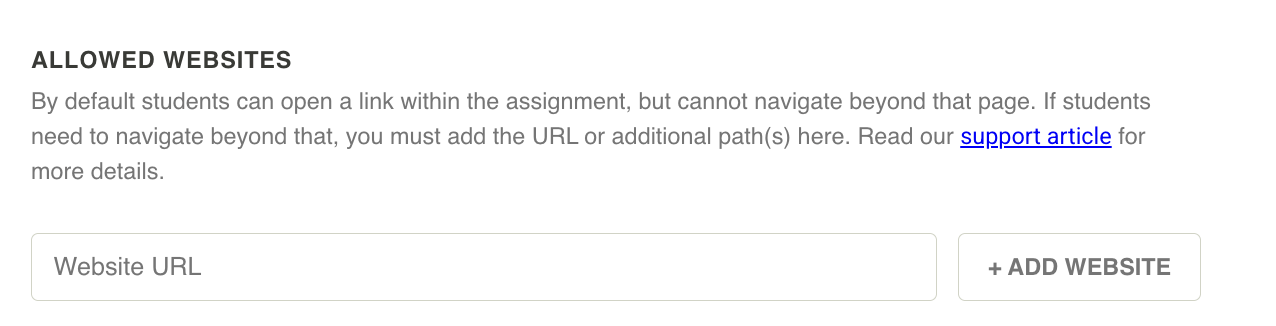
- In Allowed Websites, enter the URL of the website or specific path if students only need to access a specific page, then click Add Website to add it to the list. Repeat for each additional site.
- Save the assignment settings.
- Be sure that there is a link to the website in the assignment content.
- Go to the Student View tab, toggle Preview with Respondus to test the assignment in LockDown Browser and click through the linked pages to confirm they open.
Choosing how much to allow
The URL you enter acts as the starting point for navigating to the linked webpage: students can visit that address and anything beneath it. A shorter URL allows access to more of a website; a longer URL is more specific and allows less. The following examples show how you could link to an online textbook.
URL Entered | Students can visit | Students cannot visit |
|---|---|---|
Every page on chem.libretexts.org, including multiple textbooks, searching functions, and any glossaries | The LibreText home page or sites for other LibreText disciplines, such as bio.libretexts.org, the biology website | |
All of the General Chemistry books and their chapters | Organic, Analytical, or other bookshelves, and the site's home page | |
| Only the Chemistry 2e textbook and its chapters | Any other textbook on the site, including other General Chemistry texts |
| https://chem.libretexts.org/Bookshelves/General_Chemistry/Chemistry_2e_(OpenStax)/01%3A_Essential_Ideas | All sections of Chapter 1: Essential Ideas in the Chemistry 2e textbook | Any other chapters of the Chemistry 2e textbook |
In this example, there are more specific paths within a chapter, for example https://chem.libretexts.org/Bookshelves/General_Chemistry/Chemistry_2e_(OpenStax)/01%3A_Essential_Ideas/1.02%3A_Chemistry_in_Context links to one specific section, Chemistry in Context, within the Essential Ideas chapter, but there are no lower level pages linked from the section. In other words, this is the longest and most specific a URL can get for that textbook. If you only wanted students to access just that specific section and do not want them to navigate to any other sections or chapters, then you could just link this URL in the assignment and would not need to add any URLs to the Allow Websites list. However, if you wanted students to be able to access that section and other sections, you would need to either add multiple URLs, one for each allowed section, or allow one of the shorter, higher level URLs, such as the chapter or textbook level.
Tips and common issues
- Sites that require a login usually send students to a separate sign-in address. Allow the entire domain or add the sign-in page as well, or students will be blocked before they reach the resource.
- Don't add another LMS or testing platform to the allow list. Linking from a LockDown Browser assignment into another learning platform causes errors and is not supported by Respondus.
- The "Link is Blocked" message in Respondus: If you preview the assignment and a page is blocked in Respondus LockDown Browser, click the (?) beside the message to see the address that was blocked. You will want to add that to the list if you want students to go there.
- Downloadable e-books aren't supported. Resources that open in a separate reader app (for example Kindle, Adobe Digital Editions, or OverDrive) cannot be used inside LockDown Browser.
- Disabling LockDown Browser clears the list. If you turn off LockDown Browser for an assignment and later turn it back on, you will need to re-enter any URLs in your Allowed Websites list.
Was this article helpful?
That’s Great!
Thank you for your feedback
Sorry! We couldn't be helpful
Thank you for your feedback
Feedback sent
We appreciate your effort and will try to fix the article